Dynamics AX's forms' caption is composed of two parts: The name of the form / table being edited, and the primary key or at least two key fields that tell the user what record he has selected.
But do you know how to change these texts? I'll show you some ways of doing it in this post.
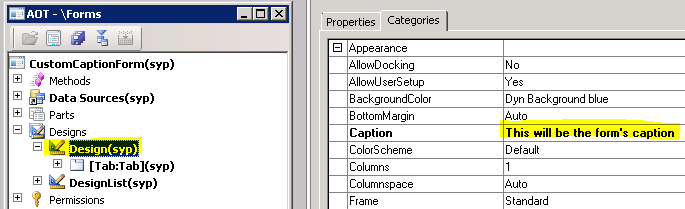
The first part of the caption, the name of the form, can be set on the
Caption property, on the Design node of the form:
And that change can be seen on the left side of the form's caption:
Additionally, you can change the left part of the form through coding. Just add the following line on the
init method or on whatever other key method you want it to be:
element.design().caption('Foo');
The second part, which is some information about the record, can be changed in two ways: through property settings, or through X++. I'll show both of them.
The table has two properties that you can use for this, the
TitleField1 and
TitleField2, under the
Appearance node:
After setting them, you'll have to set another property on the form's Design node, the
TitleDatasource, which should be the datasource related to your table:
And that's it, the value on the two fields you set on the
TitleField1 and
TitleField2 properties will be included on the form's caption:
And the last way to do it, through X++, is by overriding the
caption method on the table. Of course that since we're changing something directly on the table, our change will reflect throughout the whole system. This means that if you change the caption of a table by overriding the
caption method, you'll change the caption of all of the forms where that table was used as the form's caption.
We can do something simple, like this:
public str caption()
{
    str ret;

    ret = super();

    if (this.RecId)
    {
        ret = strFmt('Item number: %1, Total sold amount: %2', this.ItemId, this.getTotalSoldAmount());
    }

    return ret;
}
private real getTotalSoldAmount()
{
    return this.UnitPrice * this.SoldQuantity;
}
With the methods above defined on our example table, our form should look like this:
We only change the behavior if the record already exists on the database, by checking if it has a RecId set. We do that because we don't want to change the default text that appears on the form when the user is inserting a new record: