Pages

Showing posts with label Form. Show all posts

Thursday, February 27, 2014

Disable auto complete on a form control

As a pattern, Dynamics AX has an auto complete feature in form controls.

There is a way to disable it though, programmatically.


There's the delAutoCompleteString method on the FormRun class. The name is pretty straight-forward.


We must override the control's textChange method to call it:

public void textChange()
{
    super();

    // Since we're overriding a control's method, "this" means the instance of the control.
    // We could also reference it by its name, if the AutoDeclaration property is Yes.
    element.delAutoCompleteString(this);
}


With that single line of code, we can disable the auto complete feature.

Thursday, September 19, 2013

Calling methods on a caller Dynamics AX form

To call methods on a caller form from another form or a class for example, you have to fetch the caller from the args object, keep it as an Object and just then you can call methods in it.

You have to keep it as an Object like the caller method returns it to you, because then the compiler allows you to call methods in a dynamic way. This means that there will be no compile-time checking for the method that you are trying to call, as it happens with any object of type Object in AX, so if you try to call a method that doesn't exist on the form, you'll get a run-time error.


Here's some example code:

Object caller = _args.caller(); 

    // Or if you're in a form:
    // caller = element.args().caller();

    caller.someMethodOnTheForm();


And just to add some defensive code so that you can avoid getting a run-time error, you could add the following validations to the same piece of code:

Object caller = _args.caller();

    if (caller is FormRun && formHasMethod(caller, identifierStr(someMethodOnTheForm)))
    {
        caller.someMethodOnTheForm();
    }

Now you're also checking if the caller is in fact a form, and also if it has the method you're trying to call.

Monday, September 16, 2013

Changing Dynamics AX's forms' caption / text

Dynamics AX's forms' caption is composed of two parts: The name of the form / table being edited, and the primary key or at least two key fields that tell the user what record he has selected.

But do you know how to change these texts? I'll show you some ways of doing it in this post.

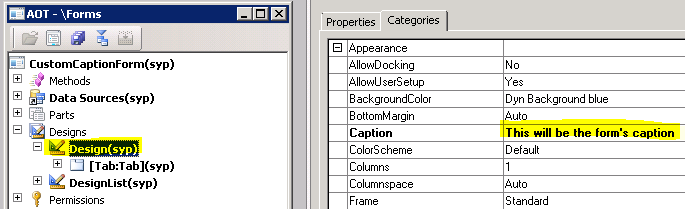
The first part of the caption, the name of the form, can be set on the Caption property, on the Design node of the form:


And that change can be seen on the left side of the form's caption:


Additionally, you can change the left part of the form through coding. Just add the following line on the init method or on whatever other key method you want it to be:

element.design().caption('Foo');

The second part, which is some information about the record, can be changed in two ways: through property settings, or through X++. I'll show both of them.

The table has two properties that you can use for this, the TitleField1 and TitleField2, under the Appearance node:


After setting them, you'll have to set another property on the form's Design node, the TitleDatasource, which should be the datasource related to your table:


And that's it, the value on the two fields you set on the TitleField1 and TitleField2 properties will be included on the form's caption:


And the last way to do it, through X++, is by overriding the caption method on the table. Of course that since we're changing something directly on the table, our change will reflect throughout the whole system. This means that if you change the caption of a table by overriding the caption method, you'll change the caption of all of the forms where that table was used as the form's caption.

We can do something simple, like this:

public str caption()
{
    str ret;

    ret = super();
    
    if (this.RecId)
    {
        ret = strFmt('Item number: %1, Total sold amount: %2', this.ItemId, this.getTotalSoldAmount());
    }

    return ret;
}

private real getTotalSoldAmount()
{
    return this.UnitPrice * this.SoldQuantity;
}


With the methods above defined on our example table, our form should look like this:


We only change the behavior if the record already exists on the database, by checking if it has a RecId set. We do that because we don't want to change the default text that appears on the form when the user is inserting a new record:

Thursday, February 2, 2012

Refresh DataSource and retain position

Update: Also read "How to effectively refresh data on forms".

Refresh a DataSource is a very common task to Dynamics AX developers, as you'll most likely perform changes on a record and have to present it to the user, on a form.


The most commonly used method to refresh the DataSource to make a form show what you have changed on a record is the research method.
The only problem is that the research method doesn't retain the record that was selected, it positions the DataSource on the first record of the result, causing the user to see another record. To resolve this matter, the research method, only in Dynamics AX 2009, has a boolean parameter, retainPosition. Now if you call it by passing true to it, it will sure retain the position of the selected record after the refresh, right? Wrong...


This should only work when your form has DataSources linked by Inner Joins in it, what means that the generated query has Inner Joins in it. Having any other link types or temporary tables causes it to not retain the position, even if you pass true when calling it.

So I'll present you two ways of retaining the position of the selected record, one that works sometimes, and one that always works, although you should always try and see if it works with research(true) before trying anything else.


On the first way, you could simply get the position of the DataSource before calling research(), like this:

int position;

    ;

    position = myTable_ds.getPosition();
    myTable_ds.research();
    myTable_ds.setPosition(position);

But does this work perfectly? Not again...

The code above should select the record that was on the previously selected record's position. What does that mean? It means that if your query result changes the record's orders, you won't have the correct record selected. This could easily happen if your form handles the records' order in a special way, or if the action is performed when the record or any records are inserted, which will certainly cause the the form to reorder the records when you tell it to refresh the DataSource.


The second way to do it will actually look for the correct record and then select it, so you can imagine it will perform a little worse than the others, but at least it will never fail (unless you, somehow, delete the record you're looking for in the meantime).


Simply copy the RecId from the record you want to keep selected to a new table buffer, like this:


MyTable      myTableHolder;
    
    ;

    myTableHolder.RecId = myTableRecord.RecId;
    
    myTable_ds.research(); // or: myTableRecord.dataSource().research();

    myTable_ds.findRecord(myTableHolder); // or: myTableRecord.dataSource.findRecord(myTableHolder);     

We copy if to a new table buffer because the findRecord method expects a parameter of type Common. If you stored the RecId in a variable, you would have to pass it to a table buffer anyway...


And that's it, it'll first refresh the DataSource, and then look for your record and select it, so the screen might even "blink" for a second. As I said, this is not the best when thinking about performance, but at least it works...